Buy anything from 5,000+ international stores. One checkout price. No surprise fees. Join 2M+ shoppers on Desertcart.
Desertcart purchases this item on your behalf and handles shipping, customs, and support to Netherlands.
๐ Elevate your IoT game with the all-in-one ESP32 display powerhouse!
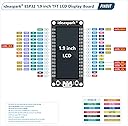
The ideasparkยฎ ESP32 Development Board integrates a vibrant 1.9-inch 170x320 ST7789 TFT LCD with a powerful ESP32-WROOM-32 module featuring 16MB flash memory and dual-mode 2.4 GHz WiFi + BLE connectivity. Designed for seamless prototyping, it uses a USB Type-C interface and supports Arduino and Micropython, making it ideal for advanced IoT applications requiring real-time data visualization and efficient wireless communication.


| ASIN | B0D6QXC813 |
| Best Sellers Rank | #368 in Single Board Computers (Computers & Accessories) |
| Brand | ideaspark |
| Built-In Media | board |
| Compatible Devices | Computers (PCs, laptops), Microcontrollers (Arduino, Micropython) |
| Connectivity Technology | USB |
| Customer Reviews | 4.0 out of 5 stars 75 Reviews |
| Included Components | board |
| Item Dimensions L x W x H | 2.83"L x 2.05"W x 0.63"H |
| Manufacturer | ideaspark |
| Memory Storage Capacity | 16 MB |
| Mfr Part Number | ESP32 1.9 inch LCD(Solder PIN) |
| Model Name | ESP32 Development Board |
| Model Number | ESP32 1.9 inch LCD(Solder PIN) |
| Operating System | FreeRTOS |
| Processor Brand | Espressif |
| Processor Count | 1 |
| RAM Memory Technology | LPDDR |
| Total Usb Ports | 1 |
| UPC | 727210621749 |
| Warranty Description | No |
| Wireless Compability | 802.11ac |
E**N
Great!
Works great, no complaints!
S**R
Interesting ESP32 breadboarding possibilities
I bought a couple of these and had only the usual difficulty plugging the module into a standard solderless breadboard. Getting all 30 pins inserted into a breadboard, particularly a new one, takes patience, but the pin spacing is correct so this is no worse than any other ESP32. The module is wide enough that to make connections to the GPIO pins it's easiest to combine two breadboards, side by side (see photo). I've gotten the display working with the Adafruit TFT libraries and look forward to using the display for viewing real time trace messages of what's going on inside the ESP32. This should be a big help in debugging and, with 16MB of flash, there will be room for lots and lots of code. Or, maybe, have a couple of these around the house to show real-time status of the home security system I'm going to build. Someday soon ....
J**N
WiFi and Display does not play nice together becasue they share GPIO2. But there is a workaround.
Ok I have been having a problem with this board becasue GPIO2 Shares the WIFI with the DC on the Display Port. After working a day and a 1/2 with ChatGPT, we have found a work around that is not hard to fix. When doing your sketch you need to run the WIFI command first and then do the display work after it connects, if you do not do this the display locks up and the board goes into constant reboots. Here is an example. // โ WiFi FIRST (CRITICAL for your board) WiFi.mode(WIFI_STA); WiFi.setSleep(false); WiFi.begin(ssid, password); Serial.print("Connecting to WiFi"); while (WiFi.status() != WL_CONNECTED) { delay(500); Serial.print("."); } Serial.println(); Serial.println("WiFi Connected"); // โ Lock GPIO2 AFTER WiFi is done with it pinMode(2, OUTPUT); digitalWrite(2, HIGH); // โ Backlight pinMode(32, OUTPUT); digitalWrite(32, HIGH); // โ Display init AFTER WiFi tft.init(); tft.setRotation(1); tft.fillScreen(TFT_BLACK); tft.setTextColor(TFT_YELLOW, TFT_BLACK); tft.setTextSize(2); tft.setCursor(10, 10); tft.println("WiFi OK"); tft.println(WiFi.localIP()); Chat GPT also had me add a 10K Ohm resister between the 3.3v pin and the D2 pin WiFi briefly pulls GPIO2 into unstable states during RF startup The 10kฮฉ pull-up keeps DC from floating Keeps the display in DATA mode instead of random COMMAND mode Prevents the freeze most of the time Now to be honest, I did this before we tried the code to start WIFI first, so you may not need this. But with this board D2 being tied to the WIFI and the display was a bad Hardware mistake. The displays DC should have been tied to pin D16 or something that is not tied to the wifi. Needless to say the board works great now after figuring that out.
J**.
Excellent ESP32 board with color display and battery management for the price
I got this one to address color displays; As all Heltec I try, this one is not left behind. Heltec has its way to deal with the display and the battery status as well as with some other libraries that allows management of sensors and outputs; as soon as you are familiar with it, it is as good as any ESP32 board in the market. I like the level of integration.
J**L
Soldering Quality is Terrible, Missing Battery Charger & Voltage Booster, Broken Parts
My brother purchased one of these boards, but had problems with it, because most of the components were not soldered. Out of curiosity, I purchased one as well. Mine booted as expected. I followed the instructions in the product images, and changed the image to my own image. I loaded the original factory program. All of the basic functions worked. However, my first real test was to attach a BME280 sensor and display the readings on the screen. I have used this sensor before, so I know it works. Wired the sensor to the default I2C pins (SDA: GPIO21, SCL: GPIO22) and could not get the sensor to work. When I removed the code for the display, which should be using SPI, the sensor worked without issue. I changed the I2C pins (SDA: GPIO12, SCL: GPIO14) and now the display and sensor work without issue. Since SPI and I2C are completely different, it didn't make sense that changing I2C pins allowed me to use both protocols. Looking at the pinout shows the default I2C pins are adjacent to the SPI pins used for the display. I checked continuity between the pins and found that GPIO22 and GPIO23 are connected. I looked at the solder joint, and they are indeed connected. Using a very small solder tip, I was able to fix the solder joint without removing the screen. I spent two evenings troubleshooting this board, but it works now...I think. Who knows what other solder issues I will find. ---UPDATE--- If the board has a boost module and/or battery charge circuit, they do not work. The screen operates at a much different brightness when on battery (3.7V) versus USB (5V). Battery connected to module does not charge when also connected to USB. So far (Jan 2025), I have yet to hear from the seller/manufacturer regarding specific board questions. Also, I have yet to find circuit diagrams. For these reasons, I am dropping my review to a single star. ---=== 2026-01-20 UPDATE ===--- I ended up getting a second one of these (don't ask), and I am returning it because C9 (I think) is broken. This is very disappointing. Also, 1 year later, and no communication from the vendor/manufacturer. Review will stay at 1 star.
B**V
Pin rows are 28mm (ish) apart
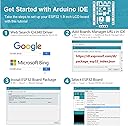
When I bought two of these I also bought some breakout boards. I was expecting the distance between the pin rows to be the same as a typical ESP32 module (24ish mm). They are closer to 28mm apart. It should work fine with a breadboard, but be careful about buying a breakout board. I haven't gotten the boards running, but I am feeling a little salty about the pin profile, so 3 stars for not making the issue more prominent. [update] I have the board running. I used the Arduino IDE. It seems to work pretty well. I am not sure how far it can transmit, but I am feeling a bit more positive about the board. You can adapt the board into a 1 inch or 0.9 inch breakout board by purchasing some pin headers and the EPLZON 2" x 1.5" solder breadboard here on Amazon. Here is my test code for the module: #include <WiFi.h> #include <ArduinoOTA.h> #include <Adafruit_GFX.h> #include <Adafruit_ST7789.h> #include <SPI.h> // TFT Display Pin Definitions #define TFT_MOSI 23 #define TFT_SCLK 18 #define TFT_CS 15 #define TFT_DC 2 #define TFT_RST 4 #define TFT_BL 32 // Watchdog indicator colors #define WATCHDOG_RED ST77XX_RED #define WATCHDOG_BLACK ST77XX_BLACK #define WATCHDOG_GREEN ST77XX_GREEN // Replace these with your network credentials const char* ssid = "Your_Wifi_SSID"; const char* password = "Your_Wifi_Password"; // Device name const char* deviceName = "ESP32_OTA_Device"; // Initialize the TFT display with the appropriate pins Adafruit_ST7789 tft = Adafruit_ST7789(TFT_CS, TFT_DC, TFT_RST); // WiFi status and OTA variables String wifiStatus = "Connecting to WiFi..."; String ipAddress = "IP: None"; String otaStatus = "OTA Idle"; // Watchdog indicator variables unsigned long lastWatchdogToggle = 0; int watchdogColorIndex = 0; uint16_t watchdogColors[] = {WATCHDOG_RED, WATCHDOG_BLACK, WATCHDOG_GREEN, WATCHDOG_BLACK}; // Progress bar dimensions int progressBarWidth = 300Skip; int progressBarHeight = 20; int progressBarX = 10; int progressBarY = 130; // Function to update TFT screen with Wi-Fi connection and OTA status void updateScreen() { tft.fillScreen(ST77XX_BLACK); // Display the device name in white tft.setCursor(10, 10); tft.setTextColor(ST77XX_WHITE); tft.setTextSize(2); tft.println(deviceName); // Watchdog indicator (flashing square) tft.fillRect(250, 5, 20, 20, watchdogColors[watchdogColorIndex]); // Display Wi-Fi status with dynamic color tft.setCursor(10, 40); if (WiFi.status() == WL_CONNECTED) { tft.setTextColor(ST77XX_GREEN); } else { tft.setTextColor(ST77XX_YELLOW); } tft.println(wifiStatus); // Display IP address tft.setCursor(10, 70); tft.setTextColor(ST77XX_WHITE); tft.println(ipAddress); // Display OTA status with dynamic color tft.setCursor(10, 100); if (otaStatus.startsWith("Error")) { tft.setTextColor(ST77XX_RED); } else if (otaStatus.startsWith("OTA Update")) { tft.setTextColor(ST77XX_YELLOW); } else { tft.setTextColor(ST77XX_GREEN); } tft.println(otaStatus); } // Function to draw the OTA progress bar void drawProgressBar(unsigned int progress, unsigned int total) { int filledWidth = (progressBarWidth * progress) / total; tft.fillRect(progressBarX, progressBarY, filledWidth, progressBarHeight, ST77XX_GREEN); tft.fillRect(progressBarX + filledWidth, progressBarY, progressBarWidth - filledWidth, progressBarHeight, ST77XX_BLACK); } void setup() { Serial.begin(115200); // Initialize the TFT display tft.init(170, 320); // Initialize with 170x320 resolution tft.setRotation(1); // Set the orientation to landscape tft.fillScreen(ST77XX_BLACK); // Clear the screen tft.setTextColor(ST77XX_WHITE); tft.setTextSize(2); // Initialize the backlight pin pinMode(TFT_BL, OUTPUT); digitalWrite(TFT_BL, HIGH); // Turn on the backlight // Display the initial message on the screen updateScreen(); // Connect to Wi-Fi WiFi.begin(ssid, password); while (WiFi.status() != WL_CONNECTED) { wifiStatus = "Connecting to WiFi..."; updateScreen(); delay(1000); } wifiStatus = "WiFi Connected!"; ipAddress = "IP: " + WiFi.localIP().toString(); updateScreen(); // Set up OTA ArduinoOTA.setHostname(deviceName); ArduinoOTA.onStart([]() { otaStatus = "OTA Update Started..."; updateScreen(); }); ArduinoOTA.onEnd([]() { otaStatus = "OTA Update Completed!"; drawProgressBar(100, 100); updateScreen(); delay(1000); // Pause before going back to the main screen }); ArduinoOTA.onProgress([](unsigned int progress, unsigned int total) { otaStatus = "OTA Updating..."; drawProgressBar(progress, total); }); ArduinoOTA.onError([](ota_error_t error) { if (error == OTA_AUTH_ERROR) otaStatus = "Error: Auth Failed"; else if (error == OTA_BEGIN_ERROR) otaStatus = "Error: Begin Failed"; else if (error == OTA_CONNECT_ERROR) otaStatus = "Error: Connect Failed"; else if (error == OTA_RECEIVE_ERROR) otaStatus = "Error: Receive Failed"; else if (error == OTA_END_ERROR) otaStatus = "Error: End Failed"; updateScreen(); }); ArduinoOTA.begin(); } void loop() { ArduinoOTA.handle(); // Handle OTA updates // Flashing Watchdog indicator (every 500 ms) unsigned long currentMillis = millis(); if (currentMillis - lastWatchdogToggle >= 500) { lastWatchdogToggle = currentMillis; watchdogColorIndex = (watchdogColorIndex + 1) % 4; // Cycle through colors updateScreen(); // Redraw screen with new watchdog color } }
I**T
Solo Bitmining is possible.
Once I found the rightbflash program, it worked flawlessly for what I intended it for. Solo bitmining. *Note* USB-C to USB-C doesn't work to power on, I needed USB-A to USB-C. Will definitely be buying more. They will look awesome on my desk at work and wall at home.
L**0
Poor manufacturing AND quality control
Visually poor soldering of ESP32 chip to board. Looks like it was re-soldered on some pins, and a poor job of that. Did not buy a returned item, so that doesn't explain the solder mess. Some IO pins don't seem to be functional, probably due to soldering problem or chip damage from crude re-soldering. Display seems to work as it should. Inspect and test VERY thoroughly. There are much better boards out there.
Trustpilot
3 days ago
1 week ago