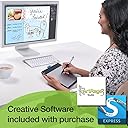
🎨 Elevate your digital canvas—create like a pro, anywhere, anytime!
The Wacom Intuos Pen and Touch Medium Tablet (CTH680) is a versatile digital drawing tool featuring a battery-free pen with 1024 pressure sensitivity levels, an 8.5 x 5.3 inch active area, and multi-touch gesture support. Designed for both Mac and PC users, it includes customizable ExpressKeys and comes bundled with creative software like Autodesk Sketchbook Express and ArtRage Studio. Its medium size offers a perfect balance of workspace and portability, making it ideal for professionals and creatives on the go.
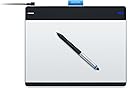
| ASIN | B00EN27UC2 |
| Active Surface Area | 8.5 x 5.3 |
| Additional Features | Pen |
| Best Sellers Rank | #176 in Computer Graphics Tablets |
| Brand | Wacom |
| Built-In Media | Autodesk Sketchbook Express & ArtRage Studio |
| Color | Silver and Black |
| Compatible Devices | Personal Computer |
| Connectivity Technology | Wireless |
| Customer Reviews | 4.5 out of 5 stars 730 Reviews |
| Global Trade Identification Number | 00753218991096 |
| Item Dimensions L x W | 8.75"L x 10.75"W |
| Item Weight | 1.1 pounds |
| Manufacturer | Wacom, Inc |
| Mfr Part Number | CTH680 |
| Model Name | CTH680 |
| Model Number | CTH680 |
| Native Resolution | 4096 levels |
| Operating System | Mac OS, Windows |
| Pressure Sensitivity | 1024 levels |
| Screen Size | 216 inches |
| Special Feature | Pen |
| Specific Uses For Product | personal |
| Target Audience | Teacher |
| UPC | 753218991096 |
| Unit Count | 1 Count |
| Warranty Description | 2 years |
M**E
Worth Every Penny!
I just want to clarify from the start that Wacom was not my first choice based solely on the price, so I initially purchased the Huion 610 Pro, http://www.amazon.com/gp/product/B00TGOHZR2?psc=1&redirect=true&ref_=oh_aui_detailpage_o06_s00 just to save some money. I am a photographer/retoucher, not a graphic artist, I have a hard time drawing a "smiley face," but I need the tablet to use in photoshop as it is easier to handle than a mouse. I unboxed the Huion, installed the drivers and kicked the tires to check it out.........that lasted all of about five minutes until I realized this tablet wasn't for me. I packed it back in its box and haven't opened it since. However I still needed a tablet so I went with the Wacom Intuos Pen & Touch Medium, about twice the cost of the Huion. As soon as I unboxed it I realized that I had a winner! The Wacom is more expensive but in this case you really do "get what you pay for." The Wacom is so much better, better build, WAY better software, and with a slim profile it is more comfortable to work with, especially with the wireless kit accessory. There really is no comparison, there's a reason everybody says Wacom is the best and thats because they are!
D**O
All you need to be a digital artist!
Tablet came a day early! Yay Amazon! I was torn between this tablet (originally the bamboo) and the intuos 5, which was an additional $150. I've never used a tablet before and the only thing people said that were different between the two were the "levels of detail"...What does that mean? Well, I'll tell you this: Absolutely nothing! I finally googled pictures of art done on both tablets and the Wacom Intuos Pen & Touch can achieve the same level of detail as the Intuos 5. Yes, the Intuos 5 is newer and has some more customizable features than this tablet, but unless you're doing photo realistic 10+ hour paintings, you'll do just fine with this tablet. Look no further. Upon plugging it into my laptop, the software downloaded immediately and the tablet was ready to use within 10 minutes. There was no setting up, just open a paint program and paint away. I use Paint Tool Sai and it works great. I'll see about attaching a photo to this review to show what this tablet can do on a simple paint program such as Sai. The only thing that bugs me is the pen doesn't really fit in the pen holder (it stops sliding in at the rubber part so it dangles out) and how the USB port on the tablet is tucked into a deep hole so I have to wiggle it around before it finally goes in. I can see this ruining the pins in the future...not a good design. Other than that, the tablet is really slim and lightweight and doesn't get hot on my lap! The texture is a super fine grainy texture similar to paper so the pen doesn't slide all over, making it easier to get smoother lines.
A**N
Excellent product
Works very well. I have a few gripes but overall it's a great product. It has a service that's on all the time in the background, wasting RAM. This is a pet peeve of mine. If you're trying to make two dots, and you move too quickly between taps, a line is magically created between the two points. This is only a minor irritation at worst. If you're drawing near a deadline, keep that in mind. You should take your time while drawing anyway. I will say this, though. If you have a high resolution instead of the baby resolution that I have (1366 x 768), I would recommend investing in a larger tablet. This one works perfectly at this resolution and lower, but I suppose I can't speak for all of them. The value of a tablet is infinite paper and infinite ink. Keep this in mind while considering whether to buy a tablet. Many impractical (read: fun) designs can be explored with a tablet that you maybe couldn't on other things. An incredible amount of detail is also possible. If your children are going through pens and paper faster than you could buy them, this product is for you. If this stuff was around when I was growing up, then there would be a lot more trees.
I**T
Great Product, Minimal drawbacks
Let me start this off by mentioning a few things I immediately disliked. 1. As many others have described, the USB cable is far too short to be of any use and the housing for the micro-USB socket is seated deeply into the device, which makes it exceedingly difficult to use any other micro-USB cable to connect the device to a computer. It's relatively clear that this is supposed to be a selling point for the "optional" wireless module which Wacom REALLY expects you to buy, but I suppose that's marketing. 2. The textured surface makes it difficult to draw very thin lines accurately, much like the grain of paper (after which, I presume, the tablet surface is modeled). Furthermore, I hear a LOT about people's nibs being worn down by friction, so I purchased a plastic coverlet for the surface, which has worked marvelously. I've used it for about 3 hours now and painting on the plastic feels much better. 3. Some of the parts seem to be made as a joke; for instance, the "pen holder" attached to the top of the tablet. It's more of a loose flap of fabric. I would greatly prefer a standalone pen stand. 4. The drivers crash on occasion, but I have since discovered that they can be restarted through Services. All of that being said, the tablet is essentially perfect for creating digital art. It is marketed as a device for "unprofessional" work, but it easily has the functionality to create extremely high-quality pieces of art. As an artist who works with almost exclusively digital media, I can say without any sort of prevarication that this is probably the most useful tablet I have purchased as yet. The construction of the device's components is solid, the pen movements and pressure sensitivity are instantaneous (as far as human senses can discern), the pen buttons have a very satisfying click (right-clicking in the art program I use is critical to color picking), the express keys can be programmed to do nearly anything (and I mean anything), the touch functionality works well (and has many interchangeable features, i.e. pointer acceleration, double-tap speed, etc.), there are no lag-induced interruptions to workflow, and the size of the surface is just large enough to be useful without forcing you to sweep your arm across the desk to draw a line. On a final note: in my opinion, doubling the pressure sensitivity with some of the higher-end Wacom tablets means almost nothing in terms of precision, mostly because the human hand can't be that precise to begin with. 1024 levels should be sufficient for any type of general art project. (I can attest to this after having owned a 2048-level tablet; the difference is noticeable to an extent, but not even close to critical.) IN summation, if you are a digital artist (established or aspiring), a hobbyist, a photo retouching specialist, or even just somebody who is vaguely interested in either art or computing, you should definitely own one of these.
R**R
Great product
I bought this for two reasons: One was to do electronic digital drawing. The other is my hand is tired and sore from gripping a mouse so many hours a day. The hand fatigue is the most important up front for me so let me comment on that. This is a gem of a product! A very light grip on the pen is all that you need to use it as a substitute for a mouse. It is comfortable and produces way less stress on my hand. I will say it does take some getting used to as a pointer. It does not work the same way as a mouse. To use it you hold it ABOVE the pad. You touch the pad to click or double click or drag. And instead of a relative position as with a mouse it is absolute position on the pad as related to the page. Again, it does take some practice but once you have that it is wonderful. The installation instructions are very poor by the way. There are no written directions only some diagrams. It is not obvious but you do get a disk you have to use to complete the install. Here is what you do: Attach the device via the USB. Let the driver self install, Then put the disk in and run the startup. Then order the free software. The manual they claim is on the disk is missing. You can download it from the internet, but you have to search for it. I could not find it on the Wacom website.
M**R
SIZE DOES MATTER
Medium size is an upgrade for me. I ordered small-sized tablet in September 2014. I didn't know if I could draw. Nor did I know that I'd be sketching every evening. I had figured that if I lose interest, I'd lose $90 for small, rather than $190 for medium. Turns out that I like sketching. My screen size is 24 inches. The drawing area for 'small' is about two yellow sticky notes side by side. What I can see was 24 inches, but I had to draw within two sticky note sized area. You can imagine that I was feeling a bit claustrophobic after 17 months of use. So I upgraded to a medium sized Wacom. Drawing area for "medium" is almost exactly half of 8x11 paper. Still not big, but a whole lot better than two sticky notes. In fact, if you do the calculation it's twice. (6.0x3.7= 22.2 square inches for small, vs. 8.5x5.3= 45.05 sq. inches for medium) If I look at two tablets side by side, it doesn't look like much improvement. But it feels easier to draw. If you draw everyday, and if your screen is over 20 inches, I would recommend medium sized tablet. If you draw only occasionally, or if you use it for photo enhancements, you might be fine with small size. If your screen is laptop 15" or so (for laptops), small would work. Also if you have to carry the tablet around, small would be more convenient. USB cable is only 3 feet or so. You might need to get a longer cable if your computer is at your feet. But you have to mind what kind you get. The smaller end that goes into the drawing tablet, has to go in deep. The touch part, I like now. I didn't like it when I was using smaller size. The two sticky note size was too small for clumsy fingers. So when I was using small tablet, I had disabled the touch function. Now that I am using medium sized tablet, touch function became much more useful. I'm using it to move pictures around, tilt, and zoom. If you are an everyday sketcher, painter, drawer, and if you have 24 inch screen or larger, go with medium!
B**M
An okay starter board but too complex to setup out-of-the-box
Working in Adobe programs always made me want to try and use something like this to draw some ideas and projects easier. I was convinced that a product at this price and quality would come with a very good setup and easy to get started guide - but not really. I consider my self pretty IT-savy but using this pen board did NOT go as expected. I tried for hours - I had to look for guides online to see if they could explain why it reacted to movement when it wasn't even touching the board!! The clicks were off and in general it was really bad to use. Luckily I have a 3D artist friend who just by chance had tried this board before. He was able to guide me through several steps and complex settings before I could even use it as meant to be. He told me that he had the same issue and was tought by his teacher at the time as no guide really addressed this. It is out off the box complicated - and when you REALLY want to just get cracking - you don't want to spend hours to figure out just how the heck you can even use it. After getting it to work and trying another one from a friend, I have to say that it overall is okay. It is still not perfect to use and can jump when drawing - the scale is hard to work with in Adobe and trying to draw something with a flow is now something that worked for me. An okay starter thing, but too expensive in that aspect though - and frustrating to get started. You have to have patience and know a guy that knows the good setups.
D**R
Awesome tablet for the price
Awesome tablet for the price, Wacom is by far the best brand without paying an arm and a leg if you're in the market for a tablet - Works just as well as the more expensive and the size is really nice. The tablet itself is about the size of a piece of paper, the drawing space is a bit smaller than that. When looking for a tablet I knew right away the small was going to be far too small for me and the large was going to be harder to work with. I am glad I selected the medium it is the perfect size for any artist. The pen glides nicely over the tablet and does come with replacement tips as the pen tips do wear down overtime. Eventually you will have to buy new ones. My laptop does not have a CD drive so it was important I found one that didn't require one for any software installation. Wacom offers all of the software downloadable from their site and they also have step by step instructions on which one to order and how to install it. Very helpful! I use mine for drawing/coloring and also editing/working with photography. Works great for either!
A**Z
Excelente
WACOM siempre tiene excelentes productos y este es uno mas de ellos. Detecta la presion de la pluma , multitouch, se adapta perfectamante con la familia Adobe y otros programas de dise;o. Lo he probado en Mac OS y en windows , en ambos funciona bien , pero funciona mejor la interface en Mac OS
V**C
lo que buscaba
le doy 5 estrellas, es una buena tableta, es eficiente aunque tiende a tener problemas con windows 8 y los controladores, pero se puede arreglar facilmente con la instalación de los controladores desde la pagina web.
M**A
Excelente precio Excelente tamaño
Excelente precio, excelente tamaño, extraordinario tiempo de entrega de amazon. Wacom como siempre fabricando buenos productos para la comunidad artística
C**N
A necessity if your going to draw or paint using your computer.
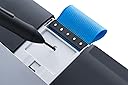
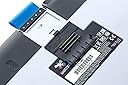
Trying to use a mouse or even a marble mouse while using paint programs is almost impossible to get decent lines or circles. This is where a graphics tablet comes in. Wacom Intuos Pen and Touch medium tablet model CTH680 review. The Wacom Intuos Pen and Touch tablet was ordered on December 30th from Amazon.ca, arrived on January 3rd. Shipping was free. The Intuos was in a box about 50 percent larger stuffed with a bit of brown paper. Neither boxes had any obvious damage, both were spotlessly clean. Opening the Wacom Intuos box I found: A tablet wrapped in two protective papers, one a thin black fabric of the type used for gardening that prevents weed growth, the other a white material similar to some flooring underlay, except much thinner and is often used for wrapping electronic goods. A USB cord that had caps and a twist tie. A pen held in place by two black foam discs. A small black paper box similar to the style of a CD case. It contained numerous papers having offers of dubious quality and or worth, a CD or DVD of drivers. A small plastic bag with a small black nylon fabric the size of an unfolded clothing tag. It has several holes along two edges, and a small black rubber ring that appears to be a replacement for a small blue rubber ring on the pen. A quick start guide. A thin pressed paper holder that is used to protect and hold all the items. Absent from the package is any real documentation that informs how to change pen nibs, what the fabric with holes is for. Absent too is the software disc. Instead you are given a code on the driver disc and this is used to download the software. When registering you are given a choice of which software of the four offered for this model. The Wacom website says you only have one chance to get this right, if you don't select all the ones you need, you won't have an opportunity to fix the mistake. As soon as I plugged in the tablet Windows 7 downloaded the latest Wacom drivers and installed them. This occurred without any surprises or problems. I was told I should restart the system, but also if I wanted to download the software I needed to register the tablet. I chose to register before restarting. I downloaded all the software, which included: Painter Lite Photoshop Elements 11 SketchBook Express v6.2 (Autodesk) Color Effects Pro 3.0 Wacom Edition The software didn't factor into my buying decision. I already have Photoshop although it's an elderly edition it suites almost all my needs and my wallet. Even so I installed Photoshop Elements 11with the hope that it will have the ability to import my Olympus E-PM1 raw files. It does. If, during this process I was offered to download the Intuos product manual, I didn't notice it. Nor can I find it on my system so it doesn't appear to have been installed during the automatic driver installation, and it doesn't come with a printed manual. Eventually I went looking and found it here: [...] I believe the statement of models covered is in error, as it does not mention this model, but as far as I can see there is no other manual that covers the model, and it mentions the model number numerous times throughout. Except where it states what models the manual covers. It is an oversight on Wacom's part to not download the manual when the drivers are downloaded and create an icon somewhere. Perhaps on the desktop. It's one thing to not include a printed manual, it's quite another to make customers search for them on their website. Especially when some customers have broken their pens trying to replace the nib. The main reason I purchased Wacom was because the other tablets were an unknown. This was a hard choice since I already have a Wacom tablet, but there are no drivers for Windows 7. There is nothing wrong with the old tablet or pen. Which is annoying, to say the least. My purchase price point gave me two choices, the Intuos Pen and Touch medium or the Intuos Pro medium. The pro gives higher resolution, reading speed and includes pen tilt. The tablet also has more switches including some that are configurable to specific applications. My model has 4 and they are currently set to act as CTRL, SHIFT, ALT and the Windows key. The USB cord is 3.3 feet long and not really long enough for me. I used my Kindle cord instead which is longer and fits snugly into the socket in the tablet. According to some reviews the included cord does not fit snugly into the socket and can be a problem. A wireless module is available but I don't currently see the need, except that it would make it easier to put away without needing to unplug the USB cord. I don't like plugging or unplugging cords all the time. Sooner or later there will be a failure, either with the cord or the socket. Usually the socket and I did read a review that complained of the flimsiness of the USB socket and it's failure. Changing the replaceable pen nib is done via the back of the tablet, there is a small hole under a removable panel. It is used to capture the nib and withdraw it from the pen. The replacement can be slid in. The Intuos Pen and Touch does not come with replacement nibs or a desktop pen holder. The pen is held in a loop of nylon fabric on the top of the tablet. There is an additional replacement nylon fabric and a small black rubber ring for the pen. Since they are black rather then blue, I assume the intent is for minor customization. Very minor. If I had to do this again I'd probably purchase the next version up, the Intuos Pro PTH-651. While it costs 50% more, it comes with many more customizable buttons and a four position touch ring, so I wouldn't have to take my hands off the tablet and pen as much, which can really break the work flow. The Pro comes with a desktop holder and replacement nibs. The table has over twice the resolution, the throughput is higher and the pen has tilt sensing plus or minus 60 levels. I don't think I would necessarily notice the higher resolution, 2000 lpi is already pretty high resolution, nor do I know if the tilt sensing would be useful to me. The Intuos Pro is wireless, so you have one less annoying USB cord. I'm always horrified at the snakes nest of cords under my computer table. I'm certain they're reproducing, whispering "Resistance is futile. You will be assimilated". The Intuos Pro is black and over all larger than the Intuos Pen and Touch although the active area is only a bit larger. In my humble opinion, the Pro is better looking, for what it's worth. While I could send back my Intuos and get the Pro, I think I'll save the money and perhaps put it towards a copy of Corel Painter. Is a tablet really necessary? For some graphic work, I think so, yes. There are some things which are extremely difficult to do with either a mouse or trackball type mouse. Drawing. Try drawing decent circles with a mouse or trackball. While I may not do some of these a lot, I stopped trying because using a trackball mouse was simply too difficult and I was not getting any better with practice. A graphics tablet can be used in Vue for the editing of terrains and painting of ecosystems and the pressure tip allows more control with less work. If I use the pen switch in Vue the pen seems to get grabby and moves the object you are painting. This is going to require more practice and I need to play with the pressure and painting ecosystems more. I'm also happy to have another input method. On some days I can't stand the thought of touching my mouse, my hand and arm ache terribly. This allows me to switch back and forth. Although a graphics pen tablet isn't as handy as a keyboard and the trackball I glued to it, it does come with an onscreen keyboard that I can use to enter in text. It also comes with a handwriting to text tool, which appears to work well, even on my scribbling although I don't see myself using it a lot, perhaps not at all. In the end, I purchased the tablet for graphics work, and in that it should work well, but like anything, it will take some time to master. I wrote this review shortly after receiving the tablet. At this point I am sure I should have purchased the Wacom Intuos Pro Pen and Touch Large Tablet (PTH851 or medium PTH651) instead, or at the very least the wireless accessory kit. The USB cord is getting tangled in other USB cords. It's really annoying. The reason for now wanting the PTH850 is the larger area but more importantly more switches that can be used as keyboard shortcuts without having to take my hands off the tablet. But still, that's a lot more money for not a whole lot more functionality. So, if I had to purchase a tablet again, I would get a Wacom, but probably the Pro version with more programmable keys. IMHO, the Pro version could use even more programmable keys. Double the number and a shift to get even more. I made a simple case for my tablet. I used dark blue vinyl seat covering material and sewed it together by hand. It prevents dust and dog hair from settling on the tablet. I also made a simple cover for my keyboard out of left over material.
X**X
Great product!
This tablet works perfectly! The ability to use it as a trackpad eliminates my use for a mouse. The buttons are customisable per program, which is extremely useful when specific buttons are used more frequently than others. A feature I don’t often use, but is awesome to have, is the ability to handwrite and the tablet software automatically translates that into text. The accuracy is superb even when my writing is more of a scribble. Overall, I’m very pleased with this product. I had purchased it for work, but may get another one for my personal use.
Trustpilot
1 week ago
3 weeks ago