
DOWNLOAD DE APP


Klantenservice
Copyright © 2025 Desertcart Holdings Limited
DOWNLOAD DE APP

🚀 Mesh your home, master your network — never miss a beat!
The TP-Link Deco M5 Mesh WiFi System is a powerful 3-pack solution designed to blanket up to 5,500 sq.ft with seamless, high-speed WiFi. Supporting over 100 devices simultaneously, it features dual-band 1300 Mbps speeds, adaptive routing technology, and a robust security suite with lifetime antivirus protection. Easy to set up via the Deco app and compatible with Alexa, it replaces traditional routers and extenders with a unified, reliable network ideal for busy, tech-savvy households.


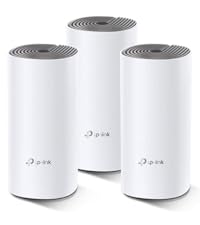
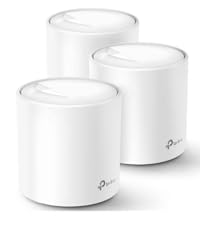


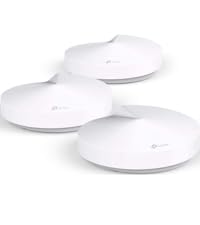


| ASIN | B06WVCB862 |
| Antenna Location | Home |
| Antenna Type | Internal |
| Best Sellers Rank | #1,505 in Electronics ( See Top 100 in Electronics ) #12 in Whole Home & Mesh Wi-Fi Systems |
| Brand | TP-Link |
| Built-In Media | 1x Ethernet Cable, 3x Deco Units, 3x Power Supplies |
| Color | 3 Pack |
| Compatible Devices | Android 4.4 or later iOS 9.0 or later |
| Connectivity Technology | Ethernet |
| Control Method | App |
| Controller Type | amazon_alexa, vera |
| Coverage | 5500 square feet |
| Customer Reviews | 4.6 out of 5 stars 27,538 Reviews |
| Data Transfer Rate | 1300 Megabits Per Second |
| Frequency | 5 |
| Frequency Band Class | Dual-Band |
| Global Trade Identification Number | 00845973080839 |
| Is Modem Compatible | Yes |
| Item Dimensions L x W x H | 4.7"L x 4.7"W x 1.5"H |
| Item Type Name | Deco M5 Whole-Home Wi-Fi System |
| Item Weight | 600 Grams |
| LAN Port Bandwidth | 2.4,5 GHz |
| Manufacturer | TP-Link |
| Maximum Upstream Data Transfer Rate | 1300 Megabits Per Second |
| Model Name | Deco M5(3-pack) |
| Model Number | Deco M5(3-pack) |
| Number of Antennas | 4 |
| Number of Ports | 6 |
| Operating System | RouterOS |
| Other Special Features of the Product | Access Point Mode |
| Security Protocol | WPA-PSK;WPA2-PSK |
| Special Feature | Access Point Mode |
| UPC | 845973080839 |
| Unit Count | 3.0 Count |
| Voltage | 100240 Volts |
| Warranty Description | 2-Year Limited Warranty |
| Wireless Communication Standard | 802.11a/b/g/n/ac |
| Wireless Compability | 802.11a/b/g/n/ac |
B**H
Great WiFi Signal in Chicago! Please read....
I read all the reviews before I bought, talked to a family friend who is an electrical engineer, talked with a friend who deals with computer systems for companies, and then just took a gamble! Installation was super simple. We just built a new house. With basement, it’s about 4,500 sq ft. Our modem is in the back corner of the house, in the basement. Even though we up’d our Xfinity signal to 1,000 Mbs, the signal in our house was pretty sad. Because of COVID, we have 2 kids virtual learning, me virtually teaching with 3 computers, and my wife doing secure law office work downstairs. We also have an extensive Ring camera system working around and through the house. On top of that, we have OneLink Safe & Sound devices on on all 3 floors! There’s a lot of stuff going on here. The first test I did I was standing a room away by the front door, which is around a corner from the unit. The signal speeds were off the charts! Then I went to the garage and driveway(pic1&2), amazing! I re-set up the ring camera out there to the TP mesh system and did a speed test through the Ring app. Much different numbers, but the signal was the highest it’s ever been without an extender in the garage (pic3)! Next, out of curiosity, I went to the sidewalk out front, check out the signal through TP app (pic4&5)! I then redid the camera on the side of the house by back porch (pic6&7). I took both Ring and TP readings - they differed, but that Ring test was the highest I had ever gotten! So, out of curiosity, I went into the backyard by the property line. See the numbers (pic8&9)! I then got on the ladder and redid the center camera. The Ring numbers were off the chart (pic10)! In our house the farthest point was my daughters bedroom. We called it the dead zone. Tonight’s reading seemed unreal, so I tested the speeds with Xfinity’s app. The 3rd numbers down was the speed test before I installed the mesh system. Look at the numbers now. I did it twice just to see if it was a fluke? She’s never had numbers that high, EVER (pic11)!! Lastly, I tested our master bedroom (pics 12&13), used both apps. Once again, amazing numbers! Placing the devices...I ignored the apps suggestions. I ran a hardwire from the back basement room up through a small hole in the first floor where the refrigerator has its water pipe coming up. I placed it on the wall to create a wide range of signal to be able to spread itself out (pic14). I then placed the second one on the 2nd floor in the middle of the hallway (the only outlets we have up there are near the floor (pic15). Signal works great! The 3rd one I placed in our unfinished basement. We do have some outlets higher up on the wall, so I placed it in the middle of the room (pic16&17) to get maximum WiFi coverage without anything blocking the signal. Now, it should also be noted, if you’re still reading this, that we live 10 minutes from the airport and planes fly over our house all the time. It messes with the signal of our WiFi, but not anymore! I swear this system covers every inch of our house with great speeds and extremely strong signal strength. The negative reviews that I read, I really don’t understand what happened in their houses. We used to have the Xfinity pods and they struggled at best and still gave us crappy numbers. This system is worth the money and does what it says! And no, I do not work for TP Link. Honestly, it’s a great system. Is it better than all the others out there? No clue, but it does work like they say it does. And, on mine, the update worked just fine. No issues. For the price and quality of product, I am feeling pretty lucky right now!
C**M
Gives DSL Increased Speed, More Signal, No Drops! WORTH IT!
This thing has fixed so many issues with our current internet experience. We Live in an area where our only option for Internet is DSL. And it’s not VDSL. It’s the regular, run-of-the-mill, plain Jane, archaic DSL. You know, the stuff that Neanderthals used when they would email each other thousands of years ago. Unfortunately, they are developing the once-rural farmland around us putting many houses in close proximity to us and bringing them up on the same ISP. Our Internet was never great, but it has slowly gotten worse with every new house that goes up. I am in IT and I work for one of the largest healthcare institutions in my state. As such, having consistent and reliable Internet was an absolute must for me. Our entertainment is all “streamed“ in nature. My kids use their phones and gaming systems to communicate with their friends. My husband enjoys his news and entertainment on his phone. But all of these things were getting more frustrating with every passing day. My Internet connection would drop on average about five times an hour during my working day. The ability to stream from Disney+ had all but dried up. We could hardly make it through an episode of Andy Griffith without our signal buffering over half the time. We were exhausting all the data in our cell phone package because our home Internet could not handle reaching the other side of the house in spite of having an extender halfway. I spent hours on the phone with Century Link trying to get “a quicker connection“ and tried various fixes with no success. Century Link sent us new modems to try, supposedly “flipped the switch” to give us a higher speed, but nothing ever made a darn bit of difference. So-I did some desperate research and discovered the concept of “home mesh” and figured I’d give it a try. Holy smokes this set up has made a HUGE difference. No more dropped signals! We can stream just fine all over the entire house; the kids are able to game and we can watch a movie at the same time. It has literally changed our Internet! During my research I found out that an extender basically gives you a totally separate network that you have to bounce back-and-forth between with your originating router network. If you use Sonos or another app that is network-dependent in tandem with an extender, you know that this is a huge pain to deal with! In order to get the app to work correctly on the speakers, you have to be on the same network. This home mesh setup totally resolves that. You stay on the exact same network throughout your entire home. I bought the 5500 square-foot/3 piece set for my 2800 square-foot house. Yes, I’m sure it was overkill, but we have 14 acres and the ability to get Wi-Fi outside is huge. Also, one big hindrance on our previous set up was the fact that we live in a brick home; but this set up flawlessly reaches through the very clunky floorplan of our house (built in the 1960s—>lots of walls!). We have the Century Link-provided C1100Z modem/wireless router manufactured sometime before 2010. In order to make this work I had to do a little bit of home networking: I had to turn off the “wireless router“ portion of the modem and use it strictly as just a modem. Then I hardwired the C1100Z into one of the Decos (doesn’t matter which) and I was off and running. Yes, you do have to use an app to set it up. It’s not hard, though. I did have to reach out to my ISPs technical support to find out what kind of connection I have (static IP/dynamic IP/PPPoE/etc), but it was still super easy. You pick the name of your network, you pick the password, you can even create a “guest network“ for your own home. I highly highly recommend this thing. Especially to someone with the archaic DSL set up like we have. It can be endlessly frustrating to deal with a crappy network and crappy connection. I was convinced that we just did not have any other options other than just dealing with it. But I was totally wrong. Ditch the extender, convert your modem/router to strictly a modem, and buy these things. You will not regret it!
K**P
Easy Setup & Rock Solid Performance
Our older TP-Link router was very solid. But when it came time to replace it with another, the low-cost TP-Link routers in the same class were horrible. Impossible to setup without hours of TP-Link tech support & completely unreliable once setup. Our Spectrum service tech suggested Deco if we wanted a mesh system. Although we don't need a mesh system, I wanted to try the Deco router to see if it was any better... What a difference! The setup was a total breeze! I was blown away at how easy it was. And we've had very fast and solid connection nonstop out of the box. (We've been using this Deco router for 2 months now.) The nice thing is, because we don't need all 3 routers, they're identical. So if the one we're currently using does fail. there are 2 backups. I'd call that good value. 😉
S**7
Not World Changing But the Difference is Noticeable
Works great as a replacement for the rental router on my fios setup. Install was easy with simply writing the name of your network, where you routers are, and move on to the next one in the mesh. Downside, I highly recommend using MoCA to spread the signal around the house. The couple I have running strictly on others nearby are far weaker in speed so you would literally need a couple every 5-10ft or from one side of the wall to the other. Though by wiring a source either ethernet or from a MoCA adapter you get the max speed that transmission method can do which is a fair bit better. Speed is also a fair bit slower than the quantum router I had at the source they. The old one would basically go beyond my phone's top speeds while this one is closer to 250mbps right next to it. This is likely because my old router had split channels for 5GHz and 2.4GHz but this one simplifies them as one signal. Whether that's more convenient or more annoying is up to you. Either way you still get full speed from ethernet so since wireless devices rarely need more than 20mbps it shouldn't effect much. The controls in app are also great with built in virus protection, parental controls, the ability to isolate devices and block devices from connecting, you can set priority devices and how much bandwidth you allocate to each, you can set times devices disconnect from the network, and warns you when one goes down if they do, when a new device enters the network, and if a new firmware is available. The app really is perfect. Only things I would count against the app are in the setup. When setting up it gives you presets for the type of room but would be way more useful if it instead had the ability to directly name them or at the very least take a picture. You'll have to remember the order you installed them as unit 4 is in "bedroom 2" which one is that, guess you'll have to remember that one on your own. As a whole a fairly painless process dumbed down for anyone to the T. Literally took 5 minutes to setup the main router and then each satellite only took about a minute. To those who aren't tech savvy, it seems a good strategy, just note you will want to extend power with MoCA or ethernet lines that literally makes a huge difference. Signal now even makes it all the way to the back of our fence about 60ft back from the house and there are no longer dead spots though there are still weaker spots. Overall I'd recommend if you understand it isn't a magic solution. It definitely will benefit from some external source to extend it's power. Use ethernet if possible, MoCA is also a fast solution, and if latency is key such as gaming, use a powerline adapter (just note those aren't very fast so MoCA would still be better in most cases).
G**C
Works as advertised. Ethernet Back haul works
I bought this for my parents house that had a basic 100 Mbps connection just installed. It was easy to set up (minus a couple snags. Remember to plug them in and sync them to the one by one. Then update the firmware. THEN move them to their final locations/daisy chain them/plug in switches/whatever) and visually looks attractive and unobtrusive enough to not at all be an eyesore; to the point my mother was impressed with how small and pretty they look. My initial impression is that this is a very worthwhile purchase. ----- For more particulars about our situation: The house is an old house, with a long rectangular L-shape structure. They recently built an addition and the materials they used, somehow effectively turned the room in to a wifi Faraday cage. Even with their old router directly on the other side of the wall, next to no signal would pass through. And on the opposite side of the house, every time anyone would use the microwave (located in the center of the house) it would completely kill the WiFi for those rooms. It was time for an update. After a bit of research, without having to blow $300+ it was between this (Deco M5), the Google WiFi, and the Orbi RBK23. The Google WiFi had double Nat issues when daisy chaining them that I didn't want to have to worry about in case they were using a combo modem/router from the cable company, which ruled that out (I ended up just buying them a pure modem myself, so moot point). The Orbi Rbk23 has a nice tri-band technology that apparently helps a lot with wireless speeds (because the 3rd band is dedicated to back haul) but the more expensive Orbi RBK50 reportedly connectivity issues that I was worried the RBK23 might inherit. At the end of the day, I was planing to physically connect them by running Ethernet cables through the attic so I didn't really need the RBK23's fancy triband back haul technology for a $70 premium ($180 vs $250 at time of purchase) After everything setup, so far everything functions ALMOST perfectly. The only minor gripes I have are that: 1.) This thing is almost *TOO* minimalist and pretty. There are no screw holes, you need to buy a separate mount if you want to stick it on a wall. It is also so lightweight that even weight of slightly dangling, connected Ethernet cables can actually put it off balance and make it tilt. 2.) This thing gets fairly warm. Warm enough that my mother commented on it. Warm enough that I reconsidered sticking them to the wall with double sided tape like I was initially planing. They're definitely light enough, but Heat + adhesives doesn't usually workout well. 3.) Older devices may have compatibility issues/authentication error issues with the mesh. So far both the HP inkjet printer and my Samsung Galaxy S6 consistently have similar issues where they initially connect, but after some period of time, they would drop signal and run in to an authentication error. This seems to be a firmware issue with the Galaxy S6 and 2.5ghz+5ghz mesh networks in general (regardless of brand as far as I can tell), supposedly there's a workaround that involves shutting off one of the bands (2.5g or 5g) on the router. Since this is also happening to the printer, I assume it's an older tech problem. 4.) The App interface is very simplistic, which may feel like a significant step down if you're used to more feature rich routers. 5.) The Monthly Report, is creepy. Disable it ASAP. 6.) If you use Ethernet backhaul, you cannot use the second Ethernet port on the satellite/secondary routers I.E. You CAN connect the main router to the modem, then connect the router to a switchboard (and even another switch to that switch as I'm doing), then plug the secondary routers (and whatever else) to the switch. You CANNOT try to connect the modem to the router, then the router to a switch, then the switch to the satellite/second routers, and then try to connect anything else to the secondary routers. Trying to do so will automatically change the routers to wireless back haul mode. Some stats for the tech nerds: Speed test results with my laptop: WIRELESS MODE (No Ethernet Backhaul) with no internet usage. Main router (directly connected): 112 Mbps Up. 12 Mbps Down. Main router, 5ghz @ 5ft :110 Mbps down. 12 Mbps up Main router, 5ghz @ 25 ft : 110 Mbps down. 12 Mbps up Secondary Router (60 feet away through 4 plaster walls) directly connected: ~70 to 110 Mbps* 12 mbps up Secondary Router 5ghz @ 5ft: ~70 to 110 Mbps down* 12 mbps up Secondary Router 5ghz @15 ft through 1 wall: ~60 to 110 Mbps down* 12 mbps up WIRELESS MODE (No Ethernet Backhaul) with two 1080p60 video streams going in same room Secondary Router (60 feet away through 4 plaster walls) directly connected: 70 to 110 Mbps* Secondary Router 5ghz @ 0 ft: 70 Mbps down* 11 mbps up Secondary Router 5ghz @ 5ft: 65 Mbps down* 10 mbps up Secondary Router 5ghz @15 ft through 1 wall: 50 Mbps down* 9 mbps up *Depending on conditions. Signal strength was erratic. At times it would preform at the maximum Mbps possible, but signal strength would randomly drop down to weak, causing the speeds to plummet to less than 1/2 to 1/4 normal speeds. Wired Mode*** (Ethernet backhaul-- Daisy chained: 1 Router connected to 2 switches connected to one another, then connected to the second router. one switch was 10/100/1000, one was 10/100. Will update when replaced.)*** with no internet usage: Main router Direct/5gz @5ft & @25ft: 110 Mbps 12 mbps up Secondary Router 5ghz &@0ft & @5ft & @15ft through wall: 85 Mbps 12 mbps up Wired Mode*** (Ethernet backhaul-- 10/100 switchboard in chain. Will update when replaced) with 2 1080p60 streams going in same room*** Secondary router 5ghz @ 0 ft 85 mbps 12 mbps up Secondary router 5ghz @ 5 ft 75 mbps 12 mbps up Secondary router 5ghz @ 15 ft through wall 70 mbps 11 mbps up ** Also of note: With Ethernet Backhaul, all speeds are significantly more consistent (I.E. My microwave and other miscellaneous interference problem is completely gone) *** I'm FAIRLY certain that the 10/100 Ethernet switch I have daisy chained and connected to the second router is bottle necking the speeds. The third router (My configuration currently looks like |Modem| --> |Main router| --> | Switch One 10/100/100 | --> |TV| + |PS3| + |VR| + |third router| + |Switch Two 10/100| --> |Secondary router|) seems to have speeds of about 110 Mbps, just like the main router. UPDATED: Got a 10/100/100 switch replacement: Main router reports: 115 Mbps Secondary router 5ghz @15 ft through wall, no internet usage: 115 Mbps Secondary Router 5ghz @15ft with two 1080p60 live streams going: 107 Mbps
R**O
Instantly enamored
I generally don't write reviews so soon after receiving a product but really was instantly enamored with the Deco M5 3-pack mesh system. Obviously this review is based on initial experience, setup and functioning. Can't speak to longer term reliability or the company's tech support as didn't need any. Though it's probably a late review in the lifecycle of this product, perhaps it helps someone make a decision about going to a mesh system or trying this brand. Our application is in a 3000 sf home, with generally low load on our wifi system (not many devices or super high bandwidth needs). For the past few years we've had a router in a room downstairs and used an extender to get better signal upstairs. Worked just ok. Greatly diminished bandwidth upstairs and certain areas of the house. Wanting to primarily improve upstairs, I started looking into options, including just a better extender and/or getting a second one. Then looked at the mesh systems. At first, seeing some mesh systems in the $400-$500 range, I balked, then I saw this one. After researching, got comfortable that the Wifi 5 (vs Wifi 6) and dual band (vs tri-band) would be adequate for us. Setup: Super impressive. This is just about the easiest setup you could imagine. Don't really know what I was expecting, but not this easy. Very slick. Function: After setting up the 3 units where I thought they'd serve us best (one at cable modem where the original router was, one other downstairs and one upstairs), I went around to every far corner of the house and did speed test. Wifi was flying everywhere. Except... outside in rear of house where it was basically unusable. Moved the 2nd downstairs unit to a different place, still downstairs but near rear door. Voila! Signal rocking with great range in back yard and virtually no degradation of signal in all those far corners of the house that I was talking about, including upstairs. Clearly I'm enamored. I guess I hadn't made a change to mesh earlier because I wasn't really looking for a solution to any particular problem. And I'm not sure at what price point it would have been worth it to me. But for $152, it's sooo worth it vs spending on additional or improved extenders. Besides the rocking signal, not having to think about which wifi I'm choosing in different parts of the house (vs having to switch to the extender in certain areas before) is really fantastic. Mesh systems... thumbs up. TP-Link - setup... thumbs up. Deco M5 3 pack value and function (so far)... thumbs up.
A**.
Works impressively well
I write this review after having the Deco for about 4 hours. The physical installation was very straightforward since the AP walks you through what to do step by step. For me, this took about 1/2 hour. It would have been less but I had to learn that my phone needed to be connected to the new WIFI network (neither cellular data nor connection to your main WIFI network seem to work) in order to complete the installation. From here comes the tricky part. The Deco has a LOT of flexibility. Each wifi extender can be assigned the name of the room that it's in (useful for identifying what is connected to where). You'll also need to identify what type of device each connection is. Setting up the parental controls can take a little getting used to, but go very smoothly once you've learned how to navigate the AP. The 3 Deco units cover my 3000+ square foot house very well. Areas that were dead zones now have full and fast coverage. Suggestions: To the best of my knowledge, there is no way to change your Deco settings through the TP-Link.com website. All changes to access and parental controls must be done through the AP. Also, I wish that there was a way to set all new devices to a default profile. At present, any new device that's connected has no restrictions. I have a few tips for new/potential purchasers: 1) If you intend to use parental controls then be sure to change the password on your existing router prior to connecting the Deco units. Otherwise, your children can simply remain connected to the existing WIFI and entirely bypass whatever limitations you put in place. 2) Once you have created your new WIFI network through the Deco units, be sure to connect your cell phone to it. The TP-Link AP must be connected to your new Deco network to complete the installation. 3) Learn how to work your way around the TP-Link AP. Set up all of the profiles of the users in your household. Note that you might want to create a profile for your house itself so that printers, security cameras, TVs, etc can be isolated. You will need done this for the next step. 4) Connect each of the devices in your network ONE AT A TIME. This will save you from needing to go back and figure out which device is which. The software does try to identify each connection by name, but it is not always accurate. You'll need to know what's what to assign each device to the appropriate profile. So far this product appears to be doing exactly what I wanted it for. Recommended. [EDIT: It's now been about 6 months and this router still works fairly well. It was a timely purchase since it helped us manage kids being home during the quarantine. There have been some minor issues in that some devices get dropped from time to time. that appears to have been a Deco software issue that has since been resolved. my only issue is that the restrictions are all or nothing. You cannot block a website only for certain times of the day. you also cannot allow a user to have windows of time (eg. 9am to 12pm and 2 pm to 6pm) because the software only allows one block of time for each user. Overall, I'm still happy with this purchase.]
S**N
Excellent for Ethernet Backhaul setup
I originally purchased Eero Pro due to the abundance of positive reviews and stability. It was fast, covered entire house, and worked well from the get-go, but seeing that I was using Ethernet Backhaul and not WiFi backhaul, there was no need for the 3rd band feature. To save money, I decided to try out the TP Link Deco M5. Background: I have 1Gbps fiber internet speed. 4,800 sqft, 3 story home with cat 5e ethernet running throughout the house. All Deco M5 access points are connected via Ethernet [Cat5e] backhaul from an unmanaged 1Gbps TP Link Switch. I have over 30 devices that use either WiFi or Ethernet. Set Up: The set-up is easy through the Android app and took only about 15 minutes for initial setup. I first connected all the Deco units wirelessly then the first thing I did was update the firmware. After everything was green, only then did I connect all of them via Ethernet Backhaul [star configuration]. [one on each floor of the house] Everything connected like a charm via Ethernet but did have some connection issues at first that nearly prompted me to return it. 1. I could not for the life of me get the Ring Camera’s to connect. I spent hours adjusting TP Link settings [disable fast roaming, enable 2.4GHz only, adding ports, etc]. I connected the Eero Pro back and Ring worked perfectly fine. I nearly returned the TP Link Deco just for this. On the second day, I went ahead and factory restored the TP Link and Ring camera’s, reconnected it and FINALLY TP Link Mesh and Ring worked flawlessly [as a precaution, using the TP Link app, I did choose the Ring Camera’s NOT to roam to the other Access Points] 2. For whatever reason, the 2 access points were only giving me at most 100Mbps WiFi being 5 feet away (and yes, my device was connected to the closest Access Point). I had to reboot the the entire network and reboot my devices to finally get the full advertised WiFi speeds. 10 feet away I am getting 450Mbps Down\Up speeds via 5GHz WiFi Performance: I currently have fast roaming switching disabled, and even then my phone\laptop connects to the strongest point without interruption and super quick. I have no dead zones and no disconnects so far. At about 10 feet away [line of sight] I am getting solid 450Mbps – at about 15 feet away [in another room with walls] it drops to about 180-250 Mbps. The further out and more walls, it drops down. Guest network is also enabled and roams between access point without error (you’ll have issues if connected to a managed switch or DLink switch though – best be safe and either Daisy chain the Deco Access points or connect to a TP Link unamanged switch in a star configuration). I like that you can turn off 5GHz and\or 2.4 GHz on both the Main SSID and Guest SSID [Eero does not have this option]. Theoretically you can have one SSID hosting 5GHz and the other 2.4GHz for better device control; HOWEVER, I currently have both SSID combined with both frequencies enabled and have not had any issues with the devices. App: The app has enough features to make customized settings (such as Ports, VLAN, QoS, device priority, etc). I like how the Parental Controls is FREE and works well (unlike with Eero where you have to pay a monthly\yearly subscription). You also get 3 years free of network AntiVirus (Eero only gives you 30 days). You are able to view all devices connected, custom its name, and even choose whether or not you'd want that device to roam to other AP. Cons\Dislikes: 1. I did try out WiFi Backhaul instead of Ethernet Backhaul, and will say that it underperformed (highly likely due to it being a 2 band system) and is the reason why I’d recommend the Eero Pro per my results (I have not tested the M9, but i'd assume it would perform better due to the dedicated 3rd band) 2. It has web-based GUI, but it’s mainly a view only type of page. You cannot adjust settings. Overall – if you are doing Ethernet Backhaul – save your money and get the Deco M5! After a few hiccups during my initial setups I have not had a single problem. If you will be connecting via WiFi then get a 3 band system [Don’t get the M5]. I recommend the Eero Pro for a large home (although it wouldn’t hurt to try out the Deco M9)
Trustpilot
2 dagen geleden
1 maand geleden